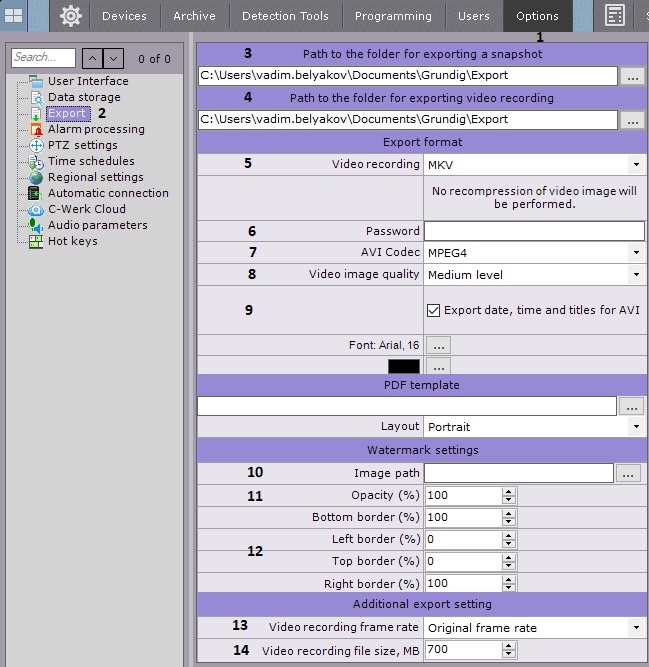
In the Path for snapshot export (3) and Path for video export fields (4), enter the full path to the folders where exported files are to be saved. To do this, click the button  .
.
During export you can specify any path. |
By default, on Windows XP, exported files are stored in C:\Documents and Settings\User\My Documents\AxxonSoft\Export\. On Windows 7 and Windows Vista, they are stored in С:\Users\User\Documents\AxxonSoft\Export\. |
These fields also allow you to specify the name template for the exported files, as follows:
{0}-Camera ID. {1}-Camera name {2}-Date. {3} Time. {4}-Recording duration (for video export only). |

Select the default formats for export of video and snapshots (5). You can select any available format during export. Snapshots can be exported in two formats: JPG and PDF. Video can be exported in three formats: MKV, EXE, and AVI.
Video is exported in MKV format without recompression. Video is exported in AVI format with recompression in the selected codec (see point 4). When video is exported in EXE format, a self-contained executable file is generated, containing video, playback tools, and necessary codecs. |
If you want to superimpose captions in the exported video, select the Export date, time, and AVI titles check box. When exporting to MKV, captions are always added, you can turn them off when playing (9).
You can watermark exported video footage as follows:
- Select a file with a watermark (10). PNG, JPEG, BMP pictures are allowed.
- Set the transparency of the watermark: 100% - opaque, 0% - clear (11).
- Set the location of the watermark (12). To do this, specify the border of the sign on each side of the frame in % of the frame size. The top left corner should be taken as the origin point.
For example, with the default parameters (Lower 100 , Left 0 , Top 0 , Right 100 ), the watermark will be located in the upper left corner. Location settings in other corners:
in the upper right corner: Lower 100 , Left 100 - (minus) width of the sign in % of the frame size , Top 0 , Right 100 ;
in the lower right corner: Lower 100 , Left 100 - (minus) character width in % of frame size , Upper 100 - (minus) sign height in% of frame size , Right 100 ;
in the lower left corner: Lower 100 , Left 0 , Top 100 - (minus) Sign height in % of the frame size , Right 100 .
Select a frame rate for the exported video: if Do not change is selected, the original frame rate is kept; if 1/2 is selected, the exported frame rate will be two times smaller than the original one; if 1/4 is selected, four times smaller, and if 1/8 is selected, eight times smaller (13).
The minimum frame rate of exported video is 1 fps. |
Specify a maximum file size for the exported video, in megabytes (14). When the limit is reached, a new file is created. If the field is left empty, export will always be performed to a single file.
The minimum value is 5 megabytes. |
- Select the font and font color (1).
- If necessary, select the PNG image to use as the background of the PDF document (2).
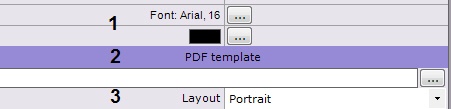
- Select the document orientation (3).
Exported PDFs consist of three sections: comment entered during export; date and time of the snapshot; and snapshot image. Configure the size of the sections and their position on the page.
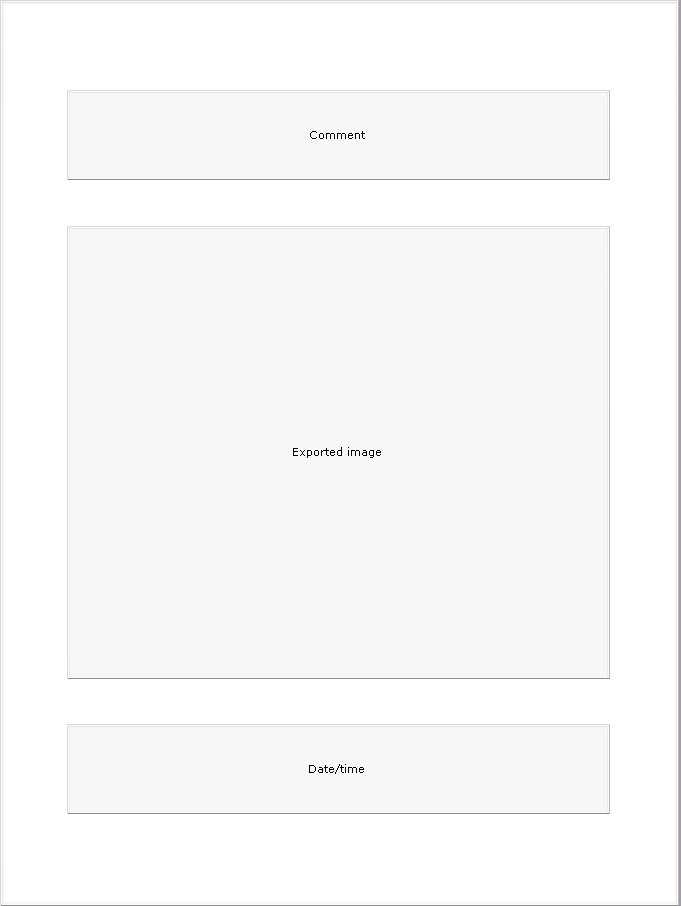
Section sizes and positions can be changed like standard windows.